GPIO, relays and manual button
School Bell can switch one or more relay outputs while a sound is playing. An optional push button can start a manual bell signal. Audio-only installations do not need GPIO configuration.
This page uses Raspberry Pi GPIO terminology. GPIO pins provide logic signals; they must not power a bell, amplifier, relay coil or mains-voltage circuit directly. Use a suitable relay interface with electrical isolation and have fixed or high-voltage wiring installed by a qualified person.
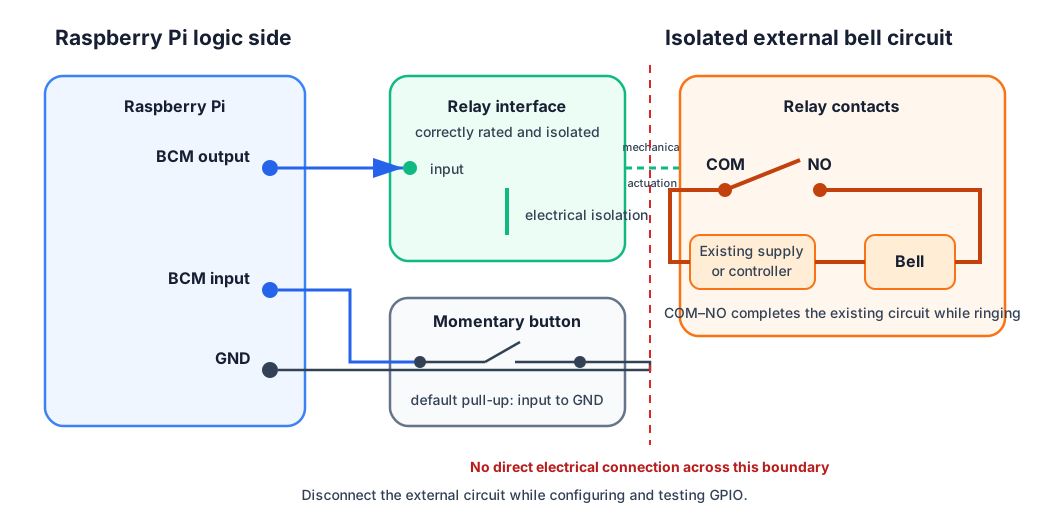
Conceptual low-voltage control and relay-contact wiring. Follow the relay manufacturer’s instructions and keep the external bell circuit isolated from the Raspberry Pi.
Understanding pin numbers
All GPIO numbers in config.json are BCM GPIO numbers. They are not the
physical header positions and not wiringPi numbers. For example, BCM GPIO 17 is
physical header pin 11.
Check the header diagram for the exact Raspberry Pi model before connecting anything. The Raspberry Pi GPIO Pinout shows BCM numbers, physical pins, power and ground pins together. Never select a 3.3 V, 5 V or ground pin as a GPIO number merely because its physical header position has that number.
Relay outputs
Key-specific relays
Use relays when different outputs must respond to different WAVE keys. A
relay accepts one key as a string or multiple keys as a list:
{
  "relays": [
    {
      "gpio": 26,
      "wav_keys": "bell",
      "active_high": false
    },
    {
      "gpio": 20,
      "wav_keys": ["workshop", "bell-and-light"],
      "active_high": false
    }
  ]
}
Only relays matching the requested WAVE key are active during playback. A key
without a matching relay remains a valid audio-only signal. Scheduled,
webhook and manual-button signals all use the same selection rule. The manual
button remains one input and selects outputs through its configured
wav_key.
Every relay key must exist in wav. GPIO pins must be unique and cannot
reuse manual_bell.gpio. active_high defaults to true independently
for each relay.
Legacy relay outputs
buzz_gpio accepts one BCM GPIO number or a list. With multiple entries all
configured relays switch together for every WAVE key:
{
  "buzz_gpio": 17
}
{
  "buzz_gpio": [26, 20, 21],
  "buzz_active_high": false
}
buzz_active_high describes the relay input:
true(the default) drives an output high to ring;falsedrives an output low to ring and is required for active-low boards.
Do not combine buzz_gpio with relays. Existing configurations can keep
using the legacy settings until key-specific switching is needed.
School Bell initializes every output to its configured inactive state and returns it to that state after ringing. Confirm the polarity for the actual relay board before connecting the bell circuit; the wrong value can energize a relay as soon as the software starts.
Connect the bell circuit safely
For fail-safe switching, normally connect the external bell circuit through
the relay’s COM (common) and NO (normally open) contacts. The circuit
then remains open when the relay is not energized. Do not use NC (normally
closed) unless that behavior has been deliberately designed and assessed.
Software polarity alone cannot guarantee a safe state during boot, shutdown, loss of Pi power or an unpowered relay input. Before connecting the real bell:
disconnect the external bell or high-voltage circuit;
verify the GPIO number and active-high/active-low setting;
measure or observe the relay contacts while booting, ringing and shutting down;
confirm that
COMandNOare disconnected whenever the bell should be silent;only then connect the external circuit.
Test before commissioning
First validate configuration and files without operating the hardware:
$ school-bell /home/pi/schema.json --check
Then disconnect the real bell circuit and run the hardware test:
$ school-bell /home/pi/schema.json --test
--test activates every configured legacy or key-specific relay output
sequentially for one second and returns it to the inactive state before testing
the next output. WAVE-key filters do not limit this hardware test. It also tests
the configured WAVE samples, so keep audio at a safe level.
If an output does not behave as expected, stop and check the BCM number, relay polarity, board power, connections and service-user permissions. Continue with Troubleshooting only while the external bell circuit remains safely disconnected.